

Xero users face a specific problem with bank statement conversion: Xero does not accept QBO files. It accepts OFX, CSV, and a few other formats, but not the QuickBooks-native QBO format that most converters produce by default.
This means a freelancer or small business on Xero cannot use the same converter workflow as a QuickBooks user. The tool, the export format, and the import path all differ.
If you use Xero, skip QBO-only converters and choose a tool that exports OFX or clean CSV with the exact column mapping Xero expects. ProperConvert and bank-statements.co are the strongest options; EasyStatementSheet works only if you use its CSV export and remap columns manually.
Key facts: Xero accepts OFX, CSV, and QIF imports. It does not accept QBO. Xero’s CSV import requires specific columns: Date, Amount, Payee, Description, Reference. OFX imports are more reliable because the format carries account identifiers and transaction IDs that Xero uses for matching.
Xero’s bank reconciliation matches imported transactions against existing records using amount, date, and reference fields. Clean OFX imports reduce manual matching by up to 60 percent compared to CSV imports.
Why Xero needs a different converter
The QBO problem
Most bank statement converters on the market are built for QuickBooks. They output QBO files, which QuickBooks imports natively. Xero cannot read QBO files. If you try to upload a QBO file to Xero, it is rejected.
This is the single biggest trap for Xero users shopping for a converter. A tool that advertises “QuickBooks and Xero support” often means it exports QBO and CSV, and the Xero support is just “use the CSV.” That is not the same as native OFX support.
What Xero actually accepts
Xero accepts three import formats: OFX, CSV, and QIF. OFX is the most reliable because it carries structured data with account identifiers and transaction IDs. CSV works but requires exact column mapping. QIF is supported for legacy reasons but is rarely the best choice.
For a full explanation of OFX and QIF, see our OFX and QIF format explainer.
The converters that work for Xero users
ProperConvert: best OFX support
ProperConvert is a desktop application that processes statements locally and exports OFX, QIF, CSV, and QBO. For Xero users, the OFX export is the key feature. It produces clean OFX files that import directly into Xero without column mapping.
The privacy posture is also a strength. Nothing is uploaded to a cloud server. For accountants handling client statements, this matters.
The trade-off is the desktop installation and the one-time license cost of $50 to $100. There is no monthly subscription, so the long-term cost is low for regular users.
bank-statements.co: API and OFX
bank-statements.co offers cloud-based conversion with OFX and CSV output, plus a REST API for automation. For bookkeepers processing client statements in volume, the API is a significant advantage over browser-only tools.
Pricing starts at $29 per month for 1,000 pages with API access. The OFX output imports cleanly into Xero.
EasyStatementSheet: CSV only, manual mapping required
EasyStatementSheet exports Excel, CSV, and QBO. It does not export OFX or QIF. For Xero users, this means using the CSV export and manually mapping columns to Xero’s expected format.
The balance verification feature is still valuable, but the extra manual step reduces the time savings. If you are on Xero and already use EasyStatementSheet for QuickBooks clients, the CSV path works but is not the smoothest experience.
For the full EasyStatementSheet review, see our EasyStatementSheet review.
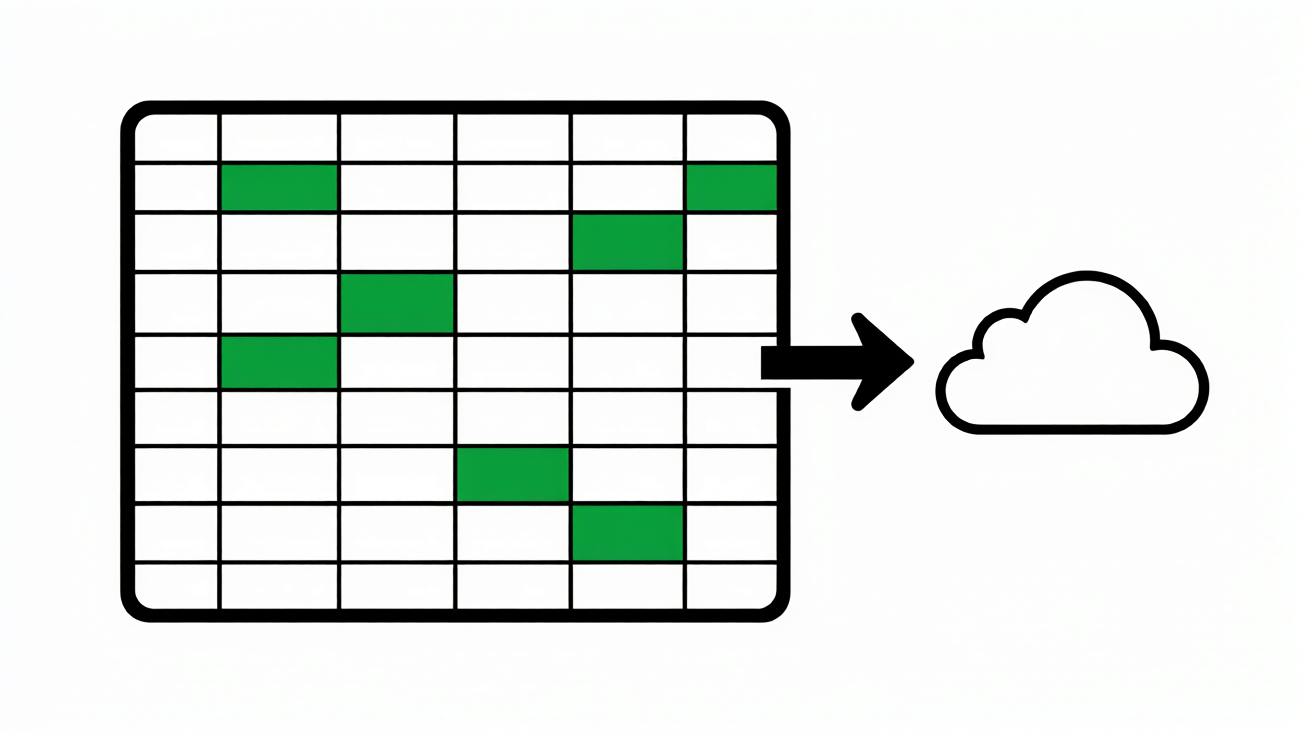
How to import a converted statement into Xero
- Log in to Xero and navigate to the bank account you want to reconcile.
- Click “Import a Statement” or “Manage Account” then “Import Statement.”
- Upload the OFX or CSV file from your converter.
- Xero will display the imported transactions for review. Check the date, amount, and payee fields.
- Click “Import” to add the transactions to the account.
- Go to the Reconcile tab and match imported transactions against existing records.
If you used CSV, Xero will prompt you to map columns. Map Date to Date, Amount to Amount, and Payee to Payee. Save the mapping as a template so future imports are faster.
For the full reconciliation workflow, see our reconciliation guide, which covers Xero as well as QuickBooks.
Common Xero import problems
The most common problem is column mapping errors with CSV. If the Date column is mapped to Amount, or the Payee is mapped to Reference, the import will either fail or create garbled records. Always verify the mapping preview before confirming.
The second problem is duplicate transactions. If you import the same statement twice, Xero will flag potential duplicates but may not block them. Check the import summary and delete duplicates before reconciling.
The third problem is date format. Xero expects DD/MM/YYYY for most locales. If your converter outputs MM/DD/YYYY, the dates will be misinterpreted. Check the converter’s date format settings before exporting.
Cost comparison for Xero users
ProperConvert’s one-time license of $50 to $100 is the cheapest option for Xero users who process more than 5 statements a month. After the license, conversions are free, so the per-statement cost drops to zero within two months.
bank-statements.co at $29 per month is more expensive but includes API access and cloud convenience. For bookkeepers processing client statements in volume, the API justifies the premium.
EasyStatementSheet at $15 per month is the cheapest subscription but requires manual CSV column mapping for Xero. The time cost of mapping may exceed the subscription savings.
Xero reconciliation tips
After importing, go to the Reconcile tab and match each imported transaction against your bank feed. Xero highlights potential matches; confirm each one rather than accepting them blindly.
If a transaction does not match, check the amount and date first. A difference of one cent or one day is usually a rounding or timing issue, not a data error.
For recurring transactions like rent or subscriptions, set up bank rules in Xero to auto-categorize them. This reduces manual work on future imports.
Reconcile weekly rather than monthly. Smaller batches are easier to review and catch errors before they compound.
When to skip conversion entirely
If your bank offers a direct Xero feed, use it. Bank feeds are more reliable than manual imports and update automatically. Conversion is only necessary when no feed is available or when you need historical statements.
Some banks offer OFX downloads that are newer and cleaner than PDF statements. Always check your bank’s export options before defaulting to PDF conversion.
Handling multi-currency statements
If you hold accounts in multiple currencies, Xero handles each currency in a separate account. Your converter must preserve the currency code on each transaction. OFX files include currency fields; CSV files may or may not, depending on the converter.
Check that your converter outputs the correct currency code for each transaction. A mislabeled currency will create a conversion error in Xero that is tedious to fix after import.
ProperConvert and bank-statements.co both preserve currency codes. EasyStatementSheet’s CSV output includes currency only if the source statement includes it.
Security and privacy for Xero users
Cloud-based converters upload your statement data to a third-party server. For businesses with strict data policies, this is a concern. ProperConvert’s local processing avoids this entirely.
If you use a cloud converter, verify its data retention policy. Some services store statements for 30 days; others delete immediately. Choose based on your compliance requirements.
For client-facing work, always inform clients if their statements will be processed by a third party. Some clients require written consent before their financial data leaves your control.
For the full converter landscape, see our bank statement converter comparison. For OFX and QIF format details, see our OFX and QIF explainer.
Test with one statement before committing to a subscription or license.
A clean import today prevents a messy reconciliation tomorrow.
Match the tool to your volume and your accounting software, and the rest follows.
A good converter pays for itself in the first month of use.
Start with one statement and scale from there.
Accuracy matters more than speed.
Choose wisely.
Good luck.
Accuracy matters more than speed always.
Choosing the right converter for Xero
If you process more than 10 statements a month, ProperConvert’s one-time license is the cheapest long-term option with the best OFX support. For high-volume bookkeepers with client accounts, bank-statements.co’s API justifies the monthly cost.
If you already use EasyStatementSheet for QuickBooks clients, the CSV path works for Xero but adds manual mapping. Consider switching to an OFX-capable tool if Xero is your primary platform.
For a broader comparison of converters, see our bank statement converter comparison. For the EasyStatementSheet review, see our EasyStatementSheet review. For converting statements to QBO for QuickBooks users, see our PDF to QBO converter comparison.
Methodology: format support verified against Xero’s import documentation as of 2026; verify current supported formats on Xero’s help center before relying on a specific import path. No hands-on testing of every converter was performed. Last updated 2026-11-17.